Thursday, 7 October 2021

install Windows 11on unsupported PCs with Microsoft's assistance

Microsoft has published a new support webpage where they provide an official method to bypass the TPM 2.0 and CPU checks (TPM 1.2 is still required) and have Windows 11 installed on unsupported systems.

This is somewhat surprising considering the tech giant's unwavering stance concerning the minimum requirements for the new Windows version.

However, it looks like Microsoft couldn’t ignore the fact that bypassing TPM checks is fairly simple, so to avoid having people breaking their systems by using non-standardized third-party scripts, they decided to just give users an official way to do it.

Installing Windows 11 on unsupported hardware comes with some pitfalls that users must be aware of, and in some cases, agree to before the operating system will install.

How to install Windows 11 on unsupported devices
Microsoft's official bypass is to add a Registry value named “AllowUpgradesWithUnsupportedTPMOrCPU” and then install Windows 11 using bootable media.

The whole registry entry required can be seen below.

Windows Registry Editor Version 5.00

[HKEY_LOCAL_MACHINE\SYSTEM\Setup\MoSetup]
"AllowUpgradesWithUnsupportedTPMOrCPU"=dword:00000001

The Windows 11 setup program will no longer check for a TPM 2.0 security processor or compatible CPUs when added.

However, you will still require a TPM 1.2 security processor, which many will not likely have. If you are missing a TPM 1.2 processor, you can bypass all TPM checks by using this script that deletes appraiser.dll during setup.

To use the new AllowUpgradesWithUnsupportedTPMOrCPU bypass to install Windows 11 on devices, Microsoft instructs you to perform the following steps:

Please read all of these instructions before continuing.
Visit the Windows 11 software download page, select “Create tool now”, and follow the installation instructions to create a bootable media or download an ISO.
On Windows, click ‘Start’, type ‘Registry Editor’ and click on the icon to launch the tool.
Navigate to the HKEY_LOCAL_MACHINE\SYSTEM\Setup\MoSetup Registry key and create a new “REG_DWORD” value named “AllowUpgradesWithUnsupportedTPMOrCPU” and set it to “1”.

Alternatively, you can download a premade Registry file that you can double-click on and merge it to create the above value for you.

Reboot your system

Tuesday, 31 August 2021

What you need to know about Omnatuor.com pop-up ads

 Omnatuor.com is a site that tries to trick you into subscribing to its browser notifications so that it can send notification spam directly to your desktop or phone.

Omnatuor.com is a malicious site that displays fake error messages to trick you into subscribing to its browser notifications. This is the fake error message that the Omnatuor.com site will display:

Omnatuor.com wants to Show notifications
Press Allow to watch the video

You should not click on the Allow button when you see such messages. If you click on the “Allow” button, you will start seeing spam pop-ups from Omnatuor.com on your computer or phone, even when the browser is closed. The Omnatuor.com spam notification ads are for adult sites, online web games, fake software updates, and unwanted programs.

This is how the Omnatuor.com pop-up ads will look on a Windows 10 computer:


You are seeing the Omnatuor.com advertisements because your computer is infected with a malicious program or a site that you have visited has redirected your browser to this page.

Less than reputable sites can display malicious ads that pop-up ads your browser to the Omnatuor.com pop-up ads to generate advertising revenue. If this happens, you can close the page and install a free browser extension like Adblock to block the malicious ads. However, if you continuously see pop-ups like the Omnatuor.com pop-up ads, then your computer might be infected with a malicious program, and you need to scan your device for adware and remove it.

source and further info: Malware Tips

Friday, 20 August 2021

Microsoft to raise prices for Office 365 and Microsoft 365 in March 2022


Microsoft has announced price increases for both Office 365 and Microsoft 365 services that will come into effect in March next year.  

The changes will apply to its commercial and business services, with consumer and education subscriptions remaining the same. 

The increase will also apply globally, with local market adjustments for certain regions, however only US pricing is available at present: Microsoft 365 Business Basic is going up from $5 to $6 per user and Microsoft 365 Business Premium will increase from $20 to $22. Office 365 E1 will rise from $8 to $10, Office 365 E3 will jump up from $20 to $23, Office 365 E5 will move from $35 to $38 and Microsoft 365 E3 changes from $32 to $36. 

These are the first "substantive" price increases to Office 365 since it was launched a decade ago, according to Microsoft, with only minor changes to the suites coming in over the last ten years. The reasoning for hiking them up now is partly to do with the higher demand for cloud-based services brought about by the pandemic, according to Jared Spataro, the corporate vice president for Microsoft 365.

more info & source: ITPro

Tuesday, 25 May 2021

What's the difference between HD, Full HD, 2K, 4K and 5K?

Display resolutions explained

HD/720p and Full HD/1080p

High Definition or HD: The most basic was 1,280 pixels wide by 720 pixels tall, shortened to 720p. The lower-case "p" refers to “progressive scan”

'Full HD', a resolution which measures 1,920 x 1,080 pixels, often called 1080p

QHD/WQHD/1440p

QHD is four times the definition of standard 720p HD, meaning you can fit the same number of pixels as four HD displays into a QHD display of the same size, namely 2,560 x 1,440 pixels, or 1440p. QHD can also be referred to as WQHD (Wide Quad High Definition), it’s the same thing, but some manufacturers put a W in front of the QHD to show that it has a wide aspect ratio.

qHD

qHD is not to be confused with QHD. Despite having a very similar name, qHD stands for Quarter High Definition and is a display resolution of 960 x 540 pixels - one-quarter of 1080p Full HD.

4K and UHD/UHD-1

True 4K displays are used in professional production and digital cinemas and feature 4,096 x 2,160 pixels. 
UHD is different because it is a consumer display and broadcast standard with a resolution four times that of a Full 1080p HD resolution: 3,840 x 2,160 pixels. The difference comes down to slightly different aspect ratios between digital cinema and home displays. 
UHD is another 16:9 aspect ratio standard, which means screens are backward compatible with Full HD content.

5K and beyond

Not many manufacturers produce 5K panels. They can run at a resolution of 5,120 x 2,880. That's double the resolution of a QHD panel, which to the naked eye will still look razor sharp. 5K monitors are just in a league of their own. Of course with all those pixels, you'll need a multitude of graphics cards to consistently output over 60Hz.

read more and source: Expert Reviews

Saturday, 9 January 2021

If you're a WhatsApp user, you'll have to share your personal data with Facebook's empire from next month – or stop using the chat app

 If you don't agree then, well, you'll just have to use the infinitely better Signal...


WhatsApp users must agree to share their personal information with Facebook and its wider empire if they want to continue using the messaging service from next month, according to its terms and conditions.

“As part of the Facebook Companies, WhatsApp receives information from, and shares information with, the other Facebook Companies,” its privacy policy, updated this week, states.

“We may use the information we receive from them, and they may use the information we share with them, to help operate, provide, improve, understand, customize, support, and market our Services and their offerings, including the Facebook Company Products.”

Said information includes your personal data. Thus, WhatsApp users who want to keep using the software must agree to allow their personal info to be shared with not only Facebook but also its subsidiaries as and when decided by the tech giant.

Users will be presented with the following choice in the app: accept this arrangement by February 8, or be blocked from using the end-to-end encrypted chat app.

source: The Register

Monday, 30 November 2020

Phishing email and fraudulent website

  Don't believe in such email as below; Don't just see the name of the sender, check the sender's email address:


If you fall for it and click the link will take you to:


IT LOOKS LIKE THE OFFICIAL CYPRUS POST OFFICE

Take a look the the URL  https: // cyprus- inc -cy. com/ user/ d8b6d

and DON'T FALL FOR IT

Wednesday, 28 October 2020

Windows 10 update kills Adobe Flash

We have issued an article related to Flash RIP back in May 2020


Microsoft has rolled out an optional update for Windows 10 that permanently removes Adobe Flash from the operating system and prevents it from being re-installed.

Ahead of the long-awaited end-of-life date for Adobe Flash, which will fall on 31 December 2020, Microsoft has released a tool for Windows 10 and Window Server that strips out all elements of the software.

The company has released the removal tool in advance of this cut-off point to help customers test and validate their environments for any impact that might occur by the removal of Adobe Flash Player.

Adobe decided in 2017 to retire its Flash Player due to the diminished usage of the technology, and the availability of better and more secure options including HTML5, WebAssembly and WebGL.

Flash Player updates and patches will continue to be rolled out between now and the end of 2020, although will cease once 31 December is reached. Disruption shouldn’t be too severe, however, given just 5% of websites were still using the environment as of 2018. 

source: ITPro

Sunday, 27 September 2020

Ransomware Attacks are not problem for us


If there is one characteristic that defines cybercrime today, it is the capacity to evolve and adapt to new environments and the ability to find ways of evading the cybersecurity measures taken by victims. 

Ransomware is no exception. One of the main features of ransomware as a threat, in addition to kidnapping data, is that it is constantly reinventing itself to persist over time and ineffectiveness.

This type of malicious software has evolved greatly since it began, and today there is a wide variety of families in existence, giving rise to new, more sophisticated strains.

Did you know that?

  • 65% of ransomware infections are delivered via phishing 
  • A ransomware attack will take place every 11 seconds by 2021 
  • 85% of ransomware attacks target Windows systems. 
  • The average cost of a ransomware attack in 2019 was $133,000 
  • 50% of IT professionals don’t believe that their organization is ready to defend against a ransomware attack.  
  • Hackers attack  every 39 seconds or an average of 2,244 times a day 
  • Between January 1st and June 30th, 2020, ID Ransomware received 100,001 submissions relating to attacks that targeted companies and public sector organizations. 
  • 90 % of IT pros had clients that suffered ransomware attacks in the past year 
  • Ransomware costs will reach $20 billion by 2021 
  • 51% of businesses have been impacted by ransomware in the last year
  • 0 affected Scicane customers
Don't be a victim - Contact us for further information @ info@scicane.com (no obligation)

What is Grep Command in Linux? Why is it Used and How Does it Work?

 Grep is a command-line utility in Unix and Linux systems. It is used for finding search patterns in the content of a given file.

With its unusual name, you may have guessed that grep is an acronym. This is at least partially true, but it depends on who you ask.

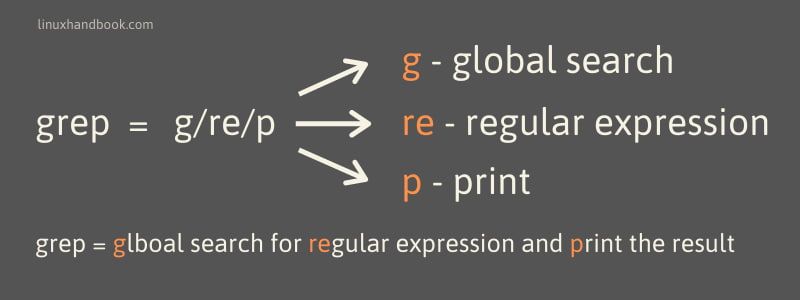
According to reputable sources, the name is actually derived from a command in a UNIX text editor called ed. In which, the input g/re/p performed a global (g) search for a regular expression (re), and subsequently printed (p) any matching lines.

The grep command does what the g/re/p commands did in the editor. It performs a global research for a regular expression and prints it. It is much faster at searching for large files.

grep command meaning

This is the official narrative, but you may also see it described as Global Regular Expression (Processor | Parser | Printer). Truthfully, it does all of that.

The interesting story behind the creation of grep

Ken Thompson has made some incredible contributions to computer science. He helped create Unix, popularized its modular approach, and wrote many of its programs including grep.

Thompson built grep to assist one of his colleagues at Bell Labs. This scientist's goal was to examine linguistic patterns to identify the authors (including Alexander Hamilton) of the Federalist Papers. This extensive body of work was a collection of 85 anonymous articles and essays drafted in defense of the United States Constitution. But since these articles were anonymous, the scientist was trying to identify the authors based on linguistic pattern.

The original Unix text editor, ed, (also created by Thompson) wasn't capable of searching such a large body of text given the hardware limitations of the time. So, Thompson transformed the search feature into a standalone utility, independent of the ed editor.

If you think about it, that means Alexander Hamilton technically helped create grep. Feel free to share this fun fact with your friends at your Hamilton watch party. 🤓

What is a Regular Expression, again?

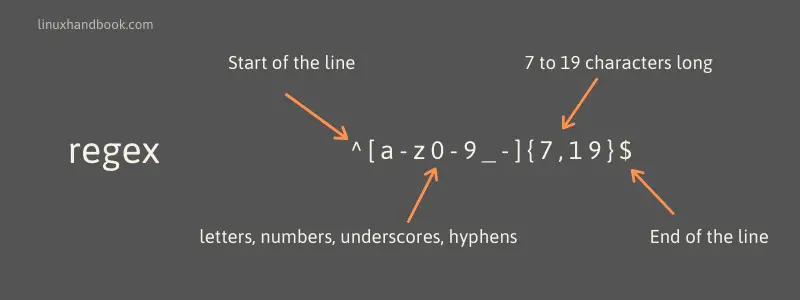
A regular expression (or regex) can be thought of as kind of like a search query. Regular expressions are used to identify, match, or otherwise manage text.

Regex is capable of much more than keyword searches, though. It can be used to find any kind of pattern imaginable. Patterns can be found easier by using meta-characters. These special characters that make this search tool much more powerful.

Regular Expression aka regex

It should be noted that grep is just one tool that uses regex. There are similar capabilities across the range of tools, but meta characters and syntax can vary. This means it's important to know the rules for your particular regex processor.


More info and full article

Friday, 8 May 2020

Adobe FLASH RIP


Adobe posted on the 25th of July 2017 the forthcoming death of Flash player.


Adobe has long played a leadership role in advancing interactivity and creative content – from video, to games and more – on the web. Where we’ve seen a need to push content and interactivity forward, we’ve innovated to meet those needs. Where a format didn’t exist, we invented one – such as with Flash and Shockwave. And over time, as the web evolved, these new formats were adopted by the community, in some cases formed the basis for open standards, and became an essential part of the web.

But as open standards like HTML5, WebGL and WebAssembly have matured over the past several years, most now provide many of the capabilities and functionalities that plugins pioneered and have become a viable alternative for content on the web. Over time, we’ve seen helper apps evolve to become plugins, and more recently, have seen many of these plugin capabilities get incorporated into open web standards. Today, most browser vendors are integrating capabilities once provided by plugins directly into browsers and deprecating plugins.

Given this progress, and the collaboration of several technology giants – including Apple, Facebook, Google, Microsoft and Mozilla – Adobe has planned to 'switch off' Flash. Specifically, they will stop updating and distributing the Flash Player at the end of 2020. They encourage content creators to migrate any existing Flash content to these new open formats.

Firefox and Chrome keep notifying users when visiting flash enabled sites that they will stop working at the very same date. Thus get prepared, any site you depend on, is using Flash, you will not be able to open or run (if you are the owner/hoster) by the end of this year.

Monday, 6 April 2020

Critical Flaw in Windows Preview Pane

Microsoft on 23/3/2020 issued Security Advisory ADV200006 for a "Critical"-rated remote code execution vulnerability in both supported and unsupported Windows systems.

Microsoft updated its security advisory on March 24 to indicate that the vulnerability is just rated "Important" for Windows 10, Windows Server 2016 and Windows Server 2019 systems. It's still rated "Critical" for older systems, though. "We do not recommend that IT administrators running Windows 10 implement the workarounds described below," the advisory explained.

The vulnerability, associated with the Adobe Type Manager Library in Windows systems, has been exposed to "limited, targeted attacks," per the advisory. The library "improperly handles a specially crafted multi-master font." This flaw can be exploited by "convincing a user to open a specially crafted document or viewing it in the Windows [Explorer] Preview pane."

There's no patch currently available. Microsoft's advisory offered three "workarounds" to implement, but they all have limitations.

More info & sources: Microsoft, Redmond

Thursday, 2 April 2020

Zoom: It appears to have more problems than it solves

Zoom admits meetings don't use end-to-end encryption

Video conferencing app Zoom does not use end-to-end encryption, according to reports, despite specifically stating that it does on its website.


Though Zoom offers users the option to “enable an end-to-end (E2E) encrypted meeting,” and provides a green padlock that claims “Zoom is using an end to end encrypted connection,” the company this week admitted that offers no such thing.

A spokesperson for the company told The Intercept that, despite its claims, it was "currently not possible" to enable end-to-end encryption for its video meetings.

Instead, the spokesperson revealed, the service uses Transport Layer Security (TLS) which encrypts data between user's meetings and Zoom's servers. End-to-end refers to data encrypted between calls, blocking out third parties - which includes the service provider. As a result, the company can see and use the data for things like targeted ads. 

"When we use the phrase ‘End to End’ in our other literature, it is in reference to the connection being encrypted from Zoom end point to Zoom end point,” the spokesperson added.

Part of Zoom's appeal to organisations is its simplicity and the fact it can be used for free, albeit without any premium features, which lets businesses try it out before forking out any money. "Video conferencing is a fantastic necessity in times like these but it is vitally important to understand the security and privacy concerns that go in parallel with this increasingly popular form of communication," said Jake Moore, a cyber security specialist for ESET. "For social and light business meetings they are fine as long as users realise what data is being shared by Zoom to third parties. I certainly wouldn't recommend using free software for sensitive or private meetings."

Unpatched Zoom App Bug Lets Hackers Steal Your Windows Password

According to the latest finding by cybersecurity expert @_g0dmode, which was also confirmed by researcher Matthew Hickey and Mohamed A. Baset, the Zoom client for Windows is vulnerable to the 'UNC path injection' vulnerability that could let remote attackers steal login credentials for victims' Windows systems.


The attack involves the SMBRelay technique wherein Windows automatically exposes a user's login username and NTLM password hashes to a remote SMB server when attempting to connect and download a file hosted on it.

The attack is possible only because Zoom for Windows supports remote UNC paths, which converts such potentially insecure URLs into hyperlinks for recipients in a personal or group chat.


To steal the login credential of user running zoom for Windows, all an attacker needs to do is sent a crafted URL (i.e. \\x.x.x.x\abc_file) to the victim over its chat interface, as shown, and wait for the victim to click it once.

To be noted, the captured passwords are not plaintext, but a weak one can easily be cracked in seconds using password cracking tools like HashCat or John the Ripper.

In a shared environment, like office space, stolen login details can be reused immediately to compromise other users or IT resources and launch further attacks.

Besides stealing Windows credentials, the flaw can also be exploited to launch any program already present on a targeted computer or downloaded as part of the attacker's social engineering campaign.


Zoom has already been notified of this bug, but since the flaw has not yet been patched, users are advised to either use an alternative video conferencing software or Zoom in your web browser instead of the dedicated client app.

Source(s) & more info: Hacker News, ITPro

Sunday, 29 March 2020

UPDATED: Zoom beams iOS user data to Facebook for targeted ads

According to ITPro, Zoom has updated the code in its platform to remove the in-app ‘Login with Facebook’ feature on iOS platforms after it emerged the Facebook SDK was unnecessarily collecting user device information.

The conferencing app, which has exploded in popularity, doesn’t explicitly say it sends data to Facebook in its privacy policy

The video conferencing platform Zoom is sending iOS users’ analytics data to Facebook without explicit consent, even if users don’t have an account with the social networking giant.

The popularity of the online communications software has exploded in the last few weeks as more and more workers and individuals adjust to remote working and life in self-isolation, and search for ways to stay in touch.

Zoom is transferring some user data to Facebook through one of the social media platform’s software development kits (SDKs), however, according to an analysis by Motherboard. Zoom users may not be aware this is happening, however. 

The conferencing app connects to Facebook’s Graph application programming interface (API) after downloading and opening the app. This API is the main route through which developers can send and receive data to and from Facebook. 


According to the analysis, Zoom notifies Facebook when an iOS user opens the app, and then provides details on the user’s device, including the model, as well as their time zone, and city they’re connecting from. 

More info and resources: Motherboard, ITPro

Saturday, 28 March 2020

Microsoft Teams

Microsoft Teams Commercial Cloud Trial offer

The Microsoft Teams Commercial Cloud Trial is replaced by Microsoft Teams Exploratory beginning in January 2020. To learn about this new offer, read Manage Teams Exploratory license.

The Microsoft Teams Exploratory experience lets users in your organization who have Azure Active Directory (AAD) and are not licensed for Teams initiate an exploratory experience of Teams. Admins can switch this feature on or off for users in their organization. The earlier Microsoft Commercial Cloud Trial is now replaced by The Teams Exploratory experience.

Who's eligible?

As long as the user has a managed AAD domain email address and currently does not have/haven't been assigned a Teams license, they are eligible for this experience. For example, if a user has Office 365 Business (which doesn't include Teams), they're eligible for the Teams Exploratory experience.

How users sign up for the Teams Exploratory experience

Eligible users can sign up for the Teams Exploratory experience by signing in to Teams (teams.microsoft.com). They will be assigned this license automatically and the tenant admin will receive an email notification the first time someone in your org starts the Teams Exploratory experience.

Differences between Microsoft Teams and Microsoft Teams free

Microsoft Teams free
Microsoft Teams
Features
Maximum members
500,000 per org
Potentially 
unlimited 
with an 
enterprise 
license
File storage
2 GB/user and 10 GB 
of shared storage
1 TB/user
Guest access
checkmark
checkmark
1:1 and group online 
audio and video calls
checkmark
checkmark
Channel meetings
checkmark
checkmark
Screen sharing
checkmark
checkmark
Scheduled meetings
checkmark
Meeting recording
checkmark
Available with 
MS Stream
Phone calls and audio 
conferencing
checkmark
Administration
Admin tools for managing 
users and apps
checkmark
Usage reporting for 
Office 365 Services
checkmark
99.9% financially-backed 
SLA uptime
checkmark
Configurable user 
settings and policies
checkmark
More info and sources: Microsoft Support website, Microsoft Docs

Wednesday, 11 December 2019

Snatch Ransomware Reboots Windows in Safe Mode to Bypass Antivirus

Cybersecurity researchers have spotted a new variant of the Snatch ransomware that first reboots infected Windows computers into Safe Mode and only then encrypts victims' files to avoid antivirus detection.

Unlike traditional malware, the new Snatch ransomware chooses to run in Safe Mode because in the diagnostic mode Windows operating system starts with a minimal set of drivers and services without loading most of the third-party startup programs, including antivirus software.

Snatch has been active since at least the summer of 2018, but SophosLabs researchers spotted the Safe Mode enhancement to this ransomware strain only in recent cyber attacks against various entities they investigated.

"The ransomware, which calls itself Snatch, sets itself up as a service [called SuperBackupMan with the help of Windows registry] that will run during a Safe Mode boot."

"When the computer comes back up after the reboot, this time in Safe Mode, the malware uses the Windows component net.exe to halt the SuperBackupMan service, and then uses the Windows component vssadmin.exe to delete all the Volume Shadow Copies on the system, which prevents forensic recovery of the files encrypted by the ransomware."

What makes Snatch different and dangerous from others is that in addition to ransomware, it's also a data stealer. Snatch includes a sophisticated data-stealing module, allowing attackers to steal vast amounts of information from the target organizations.

Source and more info: Hacker News

Tuesday, 19 November 2019

Microsoft Office 2010 end of support

Office 2010 will reach its end of support on October 13, 2020. If you haven't already begun to upgrade your Office 2010 environment, we recommend you start now.

Also, support for Windows 7 ends on January 14, 2020. Even though Office 2010 is still supported until October, Windows 7 will no longer receive security updates after January 2020, unless you purchase Extended Security Updates (ESU). Without ESU, Windows 7 is vulnerable to security threats. For more information, see the Windows 7 end of support site and Lifecyle FAQ-Extended Security Updates.

What does end of support mean?

Office 2010, like almost all Microsoft products, has a support lifecycle during which we provide bug fixes and security fixes. This lifecycle lasts for a certain number of years from the date of the product's initial release. For Office 2010, the support lifecycle is 10 years. The end of this lifecycle is known as the product's end of support. When Office 2010 reaches its end of support on October 13, 2020, Microsoft will no longer provide the following:

  • Technical support for issues
  • Bug fixes for issues that are discovered
  • Security fixes for vulnerabilities that are discovered
  • Because of the changes listed above, we strongly recommend that you upgrade as soon as possible.

What are my options?

With Office 2010 reaching its end of support, this is a good time to explore your options and prepare an upgrade plan to either of these latest versions of Office:

Office 365 ProPlus, the subscription version of Office that comes with most Office 365 enterprise plans.

Office 2019, which is sold as a one-time purchase and available for one computer per license.

A key difference between Office 365 ProPlus and Office 2019 is that Office 365 ProPlus is updated on a regular basis, as often as monthly, with new features. Office 2019 only has the same features that it had when it was released in October 2018.

source and more reading: Microsoft

Sunday, 27 October 2019

UK businesses are to blocked from using .eu domains?


Deadline of 1 January 2020 scrapped following Commons Brexit vote


Plans to stop UK businesses from owning .eu website domains have been put on hold following this week's Brexit deal vote.

Domain registry manager EURid had previously stated that UK businesses would no longer be able to register for the .eu domain name from the 1 November 2019, should the UK leave without a deal on the 31 October.

It also said that businesses would have until 1 January 2020 to prove they had operations within the EU, and therefore qualify for the .eu domain, otherwise, they would have their domains withdrawn.

Given that the UK government has secured a majority for the second reading of its deal, and that talks suggest the EU will grant an extension to the negotiation period, this has diminished the likelihood of a no-deal scenario on the 31 October.

As a result, EURid has said that its "entire plan" has now been put on hold.

Source and more info: ITPro

What is RAID?

What are the differences between the different RAID levels? Should you use Software RAID or Hardware RAID?

Don’t worry, we’ll keep it simple.

Whether or not you’re looking to set up your own server, optimize the performance of your data storage solution, or just make sure you’re protected as best you can be against data loss, a RAID solution is going to come in handy – and setting one up the right way is essential.

In this quick guide we’re going to cut down on as much of the geek speak as possible, really working to simplify everything you need to know about the different RAID levels, different ways to set up a smart RAID solution, and how to make sure you’re getting the most out of this incredible tool.

What Is RAID, Anyway?

Before we get right into the actual nuts and bolts of finding or setting up a RAID solution, it’s critical that we break down exactly what RAID technology is to begin with.

RAID is a term that stands for Redundant Array of Inexpensive (or Independent) Disks. While that sounds like a pretty geeky acronym for an even geekier system name, the actual technical aspect of a RAID setup is pretty simple and straightforward.

We’re talking about a solution that uses at least two different hard drives, working in concert, to improve the performance and/or the reliability of the system they have been installed into.

The overwhelming majority of RAID setups – especially on the commercial side of things – are going to be for those that want to protect their data and system uptime. With the right RAID solution in place, you could have an entire hard drive fall apart, break down, and stop working completely – and you’d never have to worry about comprising the safety or usefulness of the data on your RAID disk. Furthermore, your dedicated server will remain up and running even when the hard drive fails.

Yes, you’re reading that right. When you have two or more disks set up in a RAID (excluding RAID 0), one of them can fail totally and you’ll still be able to keep chugging along as though nothing happened.

At the same time, different RAID levels and setups are going to influence how, when, and what your hard disks do when there is a failure. You have to be sure you always choose the right RAID setup to maximize the protection and performance boosts you’ll get out of this technology.

Should I Get RAID? Do I Need It?

Hard drives fail. That’s a fact of life and it’s only a matter of time until the hard drives your dedicated server has will fail.

When hard drives fail on a JBOD (“Just a Bunch Of Disks” or NO-RAID) system, the system will experience downtime and data loss. If your business wants to prevent that downtime and data loss, RAID is for you.

Furthermore, if you need better I/O performance, RAID solutions can improve write and read speeds significantly.

At the end of the day, it all comes down to finding the right RAID type for your needs.

Finding The Right RAID Solution For Your Needs

The only way you’ll be able to make the most of this technology is if you find the right RAID solution for you, and you have plenty of options to pick and choose from.

Let’s breakdown the most common – and often leveraged – types below.

RAID 0 (Striping)

RAID 0 is used specifically for those that want to improve the performance of their server solutions but do not care about consequences of losing one of the disks in the array.
This RAID level uses data striping. What this means is that each piece of data is split into segments and these segments are spread across the different disks in the RAID 0 system. With RAID 0, writing and reading happens simultaneously from all the drives in the array so the I/O performance improvement can be very significant.

Because this is such a performance focused solution and not a reliability solution you won’t find any data protection with RAID 0. If a disk in the RAID 0 system fails – the system fails, and all data spread across the disks will be gone.

RAID 1 (Mirroring)

This type of RAID array is commonly referred to as a “disk mirroring” solution. RAID 1 will be implemented with at least two disks (and always with an even number of disks).

With RAID 1 the same data is written on all disks. With RAID 1 you constantly have at least two copies (depending on how many disks you have) of all of your data so should something happen to one of your disks, you’ll have a complete and functional drive to work off of, all thanks to the RAID 1 system.

RAID 1 can also provide I/O performance improvement for read operations. Having the data in two copies means being able to read it simultaneously so the read I/O speed can be up to twice as fast.

RAID 5 (Parity)

RAID 5 is set up on at least three disks that have all of the data saved stripped across them, this gives you “hot swap protection” should a disk go down.

This RAID type uses parity calculation to achieve striping of the data and the ability to recover from a single failed drive.

Think of it this way: If you have a RAID 5 setup in place, one of your hard drives can fall apart at the seams without any issues. You’ll be able to swap the damaged disk out and replace with a brand new one, with the RAID 5 system mirroring your data and rebuilding the system on the fly as necessary.

It’s like a self-healing piece of technology!

RAID 5 also provides up to two times performance improvement for read operations thanks to the striping.

RAID 10 (Mirroring + Striping)

Certainly the most common type of RAID you’ll find in a commercial setting (and a favorite for those running dedicated server systems for clients), RAID 10 balances performance AND data security.

This RAID level essentially combines the features of RAID 1 and RAID 0, making sure data is mirrored and therefore safe (mirroring) while also making sure that the I/O performance of a system is improved thanks to the data being spread across multiple drives and disks (striping).

RAID For SSD Caching

Another option that not all providers can offer you (but we can because we’re absolutely awesome) is to use RAID to create a system which automatically caches your most used data in SSD and saves the less often used in SATA. This caching mechanism constantly proves itself and brings exceptional performance boosts to those who need a lot of storage, with high performance but without the price tag of many high-capacity SSD drives.

Hardware RAID vs Software RAID

A hardware RAID controller costs money but has no overhead on the server. A software RAID is free but does carry some overhead on the server and may be less reliable under certain circumstances.

You see? We told you we’ll keep it simple.

Choosing A RAID Solution For Your Needs

At the end of the day, you need to make sure that you’re getting the most out of a dedicated server – but you also need to make sure that your data is backed up and protected at the same time.

RAID array solutions (like the ones highlighted above) are going to fit the bill perfectly, but only you will know which makes the most sense for you.